

- 2 Properties per category
- 1 Notification script for all
- 1 Reusable template
- 0 Extra scripts per new team
If you've ever managed email notifications on a large ServiceNow instance configuration, you know the pain: every department wants its own signature, its own From address, and its own branding — but the default setup forces you to create a separate notification for each team. That gets messy fast.
I've seen ServiceNow platform customization projects where admins ended up managing 40+ near-identical notifications just to handle different team signatures. It's a maintenance nightmare. The good news? There's a much cleaner way to do it.
In this guide, we'll walk through how to implement a fully scalable ServiceNow dynamic email signature configuration using ServiceNow system properties, a single notification script, and a dynamic template — all wired together with category-based logic. Whether you're a seasoned admin or a platform engineer just getting into ServiceNow notification scripts, this approach will save you hours.
Why Dynamic Email Signatures Matter in ServiceNow
Before we get into the how, let's talk about why this matters. In most mid-to-large organizations, the IT department isn't a monolith. You have the service desk, the networking team, the security operations center, the infrastructure team — and each of them communicates differently with end users.
Email branding per department isn't just a cosmetic preference. It builds trust. When a user gets an email that says "ServiceNow Notifications" from a generic address with no signature, they're far less likely to trust it or act on it compared to an email that clearly identifies the sender.
With proper multi-team email setup, you can achieve:
- Team-based email routing — each team's emails come from a recognizable From address
- Email branding per department — unique signatures that match team identity
- Centralized signature management — all signature content lives in system properties, editable without touching script code
- Full scalability — onboarding a new team is a matter of minutes, not hours
Understanding the Architecture: How It All Fits Together
The whole system is built around three layers, and understanding how they interact is key to implementing it correctly.
Layer 1 — System Properties (The Data Store)
Each team (or "category") gets exactly 2 properties per category in the ServiceNow system properties table (sys_properties):
your.app.team_name.signature— the HTML or plain-text signature blockyour.app.team_name.from_address— the ServiceNow From address configuration value
Every piece of variable content lives here. The gs.getProperty() call in your notification script pulls these values dynamically at send time. No hardcoding, ever.
Layer 2 — The Notification Script (The Brain)
One notification script handles all categories dynamically. Using category-based logic, the script reads the assignment group from the record, maps it to the right property key, and prints the correct signature — all in a single execution block.
Layer 3 — The Email Template (The Shell)
A single 1 reusable template applied across all notifications renders the email content and calls the notification script inline using the ${mail_script:script_name} tag. The same template works for incidents, change requests, and service catalog items.
Step-by-Step: Configuring Dynamic Email Signatures in ServiceNow
Let’s build this out from scratch. I’ll use a real-world scenario: an IT organization with three teams — Service Desk, Network Operations, and Security — each needing their own dynamic email signatures ServiceNow setup.
Step 1 — Create Your System Properties
Navigate to System Properties in the left-hand filter navigator. For each team, create two property records. Here’s the full set for our three-team example:
| Property name | Type | Purpose |
it.servicedesk.signature |
String | Service Desk email signature HTML |
it.servicedesk.from_address |
String | Service Desk From address |
it.netops.signature |
String | Network Ops email signature HTML |
it.netops.from_address |
String | Network Ops From address |
it.security.signature |
String | Security team email signature HTML |
it.security.from_address |
String | Security team From address |
Notice the naming pattern: it.[team_key].[property_type]. Consistency here is critical — your notification script will construct these property names dynamically, so the naming convention must be exact.
Example property values
For the signature property, store the HTML signature string:
Best regards,
<strong>IT Service Desk</strong>
Acme Corporation
servicedesk@acme.com | ext. 1234
For the From address property:
IT Service Desk <servicedesk@acme.com>
Step 2 — Build the Notification Script
This is the heart of the solution. Navigate to System Notification > Email > Notification Email Scripts and create a new script (signature). This single notification script will handle all categories dynamically.
(function runMailScript(
  current, template, email, email_action, event
) {

  // Map assignment groups to property key prefixes
  var categoryMap = {
    'IT Service Desk':      'it.servicedesk',
    'Network Operations':   'it.netops',
    'Security Operations':  'it.security'
  };

  var groupName = current.assignment_group.getDisplayValue();
  var prefix    = categoryMap[groupName] || 'it.default';

  // Pull 2 properties per category dynamically
  var signature   = gs.getProperty(prefix + '.signature', '');
  var fromAddress = gs.getProperty(prefix + '.from_address', '');

  // Set the From address configuration on the outbound email
  if (email && fromAddress) {
    email.setFrom(fromAddress);
  }

  // Print the signature into the email body
  if (signature) {
    template.print('<div class="email-signature">' + signature + '</div>');
  }

})(current, template, email, email_action, event);
Step 3 — Create an email layout
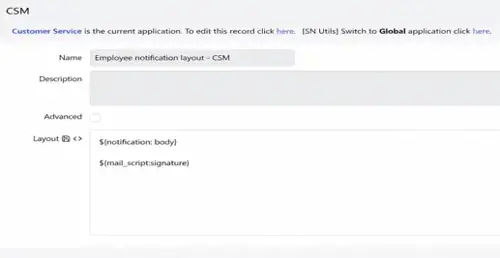
Navigate to System Policy > Email > Email Layout and click New to create a layout record.
Fill in the fields as follows:
| Field | Value |
| Name | Employee notification layout - CSM (or name it relevant to your team/scope) |
| Description | (optional - can be left blank) |
| Advanced | (leave unchecked) |
| Layout | See HTML below |
In the Layout field, enter the following:
${notification: body}
${mail_script:signature}
${notification: body}— renders the main notification body content of the email${mail_script:signature}— executes your notification script from Step 2 and injects the correct team-based dynamic signature at that position
Click Save or Submit to save the layout record.
The key is the ${mail_script:signature} tag, which tells the ServiceNow automated email notifications engine to execute your script and inject the result at that position.
Step 4 — Create the Reusable Email Template
Navigate to System notification > Email > Templates and create a new template. This is your 1 reusable template applied across all notifications. In the Message HTML field, add your notification content. And attach the email layout with the template.
Step 5 — Wire the Template to Your Notifications
Open each notification record under System Notification > Email > Notifications. In the “What it will contain” tab, set the Email template field to your reusable template from Step 3. Because the template calls the script dynamically, you only need to assign the template once per notification — not once per team.
Step 6 — Configure Email Client Templates for Reply/Reply-All/Forward
Navigate to System Policy > Email > Email Client Templates. Create or update templates for each action type: Reply/Reply-All/Forward templates. You can reference the same notification script here using the same ${mail_script:} syntax.
This ensures email template customization ServiceNow works consistently whether an email is system-generated or manually composed — a critical detail often missed in initial ServiceNow client template signature setup.
Hardcoded vs Dynamic: Why This Approach Wins
| Scenario | Hardcoded signatures | Dynamic (this approach) |
| Adding a new team | New notification + script needed | 2 new properties only |
| Updating a signature | Edit script or notification body | Update property value |
| Non-technical admin can manage | No — requires script access | Yes — system properties UI |
| From address per team | Separate notification per team | Property-driven, 1 script |
| Scalability | Linear increase in maintenance | Constant — zero extra scripting |
| Works with client templates | Manual per-template update | Same script, same tag |
Advanced Patterns: Taking It Further
Making the Category Map Fully Dynamic
Instead of a hardcoded categoryMap object in your ServiceNow notification scripts, you can construct the property key directly from the group name:
var groupName = current.assignment_group.getDisplayValue();
// e.g. "Network Operations" → "it.network_operations"
var prefix = 'it.' + groupName.toLowerCase().replace(/\s+/g, '_');

var signature   = gs.getProperty(prefix + '.signature', '');
var fromAddress = gs.getProperty(prefix + '.from_address', '');
With this pattern, adding a new team requires zero script changes — just add the two properties with the correctly named keys. That’s the full power of scalability in this design.
Using Notification Preferences for User-Level Control
Notification preferences ServiceNow can be layered on top of this system, allowing users to override certain aspects while team-level signatures remain centrally governed. This is a useful pattern for ServiceNow scripted notifications in organizations where agents have some communication autonomy.
Scoped App Best Practices
If you’re building this as part of a ServiceNow instance configuration for a specific business unit or deploying it in a scoped app, prefix all properties with your app scope (e.g., x_yourscope.teamname.signature). This keeps properties organized and avoids collisions on the ServiceNow platform customization layer.
Real-World Example: Multi-Team Email Setup at Scale
Let’s say you’re at a company with 12 distinct IT teams. Here’s how the full multi-team email setup works with this approach:
- Create 24 system properties (12 teams × 2 properties per category). Name them consistently:
it.[team_key].signatureandit.[team_key].from_address. - Deploy the single notification script. One script — no changes ever needed. The dynamic key derivation pattern handles all 12 teams automatically.
- Apply 1 reusable template applied across all notifications. All your notifications share one template — the script handles team-specific content at runtime.
- Hand off property management to team leads. Because all variable content lives in system properties, team leads can manage their own signatures without any scripting knowledge. Centralized signature management with distributed editing rights.
Troubleshooting Common Issues
Signature Not Appearing in Outbound Emails
First, check that the ${mail_script:your_script_name} tag in your ServiceNow email templates exactly matches the script name (case-sensitive). Then verify the script is Active and your notification points to the correct template.
From Address Not Changing Per Team
The ServiceNow notification From address configuration via email.setFrom() only works if the notification’s From field is left blank. A fixed From value at the notification level overrides the script.
Property Values Returning Null
If gs.getProperty() returns null, double-check the property name for typos and ensure the property is Active. If created in a scoped app, verify you’re using the full scope prefix in the property name.
Client Template Signatures Not Matching Automated Notifications
The Reply/Reply-All/Forward templates (email client templates) are configured separately from outbound notification templates. Update the ServiceNow client template signature setup for each action type to reference the same dynamic notification script.
Frequently Asked Questions
Q: How do I configure email signature in ServiceNow without writing a script?
For a truly code-free approach, store signature content entirely in system properties and have a developer set up the notification script once. After initial setup, all ongoing signature management happens through the System Properties UI — no scripting required. This is the basis of centralized signature management in ServiceNow.
Q: Can I use ServiceNow system properties email template values for images or logos?
Yes. You can store a full HTML string — including an <img> tag with an absolute URL to a hosted logo — in the signature system property. Since the notification script prints the property value as raw HTML into the email body, any valid HTML renders in the email client.
Q: What is the difference between a notification email script and an email client template?
Use 2 properties per category (signature + From address), read them in a single notification script using category-based logic, and call the script from a shared email template. This gives you full email branding per department without duplicating notifications or templates.
Q: How does scalability work when I need to add a new team?
Adding a new team requires only: (1) creating two new system properties, and (2) if you’re using the explicit categoryMap, adding one line. If using the dynamic key derivation pattern, you just add the 2 properties and they work automatically. Zero additional scripting needed.
Conclusion
The ServiceNow dynamic email signature configuration approach described here is one of those solutions that feels almost too simple once you see it. Two system properties per team. One notification script. One reusable template. That’s the entire system.
What makes it powerful isn’t complexity — it’s the clean separation of concerns. Data in system properties, logic in the notification script, presentation in the email template. When something needs to change, you know exactly where to go.
Whether you’re configuring ServiceNow email signature by team for three departments or thirty, this approach scales linearly in properties and constantly in code. That’s the kind of ServiceNow platform customization that’s still easy to maintain two years later.
Need Help Implementing This on Your ServiceNow Instance?
The Synergy IT team specializes in ServiceNow platform engineering, configuration, and optimization. Whether you need help with email signature setup, notification architecture, or a full platform review — we’ve done it at scale.
Visit: www.synergy-it.com and talk to our experts today.